

What You’ll Accomplish
Just-in-Time (JIT) Access Requests let you grant temporary access to production resources with automatic expiration. Instead of giving permanent access, you can:- Grant a developer 2 hours of database access for debugging
- Allow on-call engineers 8 hours of access during their shift
- Enable break-glass access for emergencies with full audit trail
- Reduce standing privileges by requiring approval for every access request
How JIT Access Requests Work
1
User Requests Access
User runs
hoop connect <connection> --duration 2h to request time-limited access2
Request Created
An access request is created with status PENDING and approvers are notified via Slack/Teams
3
Approver Decides
Approver approves or rejects the request
4
Access Granted
If approved, user gets access for the requested duration. Access automatically expires when time runs out.
Request Statuses
Quick Start
Prerequisites
To get the most out of this guide, you will need to:- Either create an account in our managed instance or deploy your own hoop.dev instance
- You must be your account administrator to perform the following actions
- A connection configured with an agent
- At least one user group for approvers (e.g.,
admin,dba-team) - (Optional) Slack integration for notifications
Step 1: Enable JIT Access Requests on a Connection
1
Navigate to Access Requests
Go to Manage > Access Requests in the Web App
2
Select Your Connection
Find the connection you want to protect (e.g., 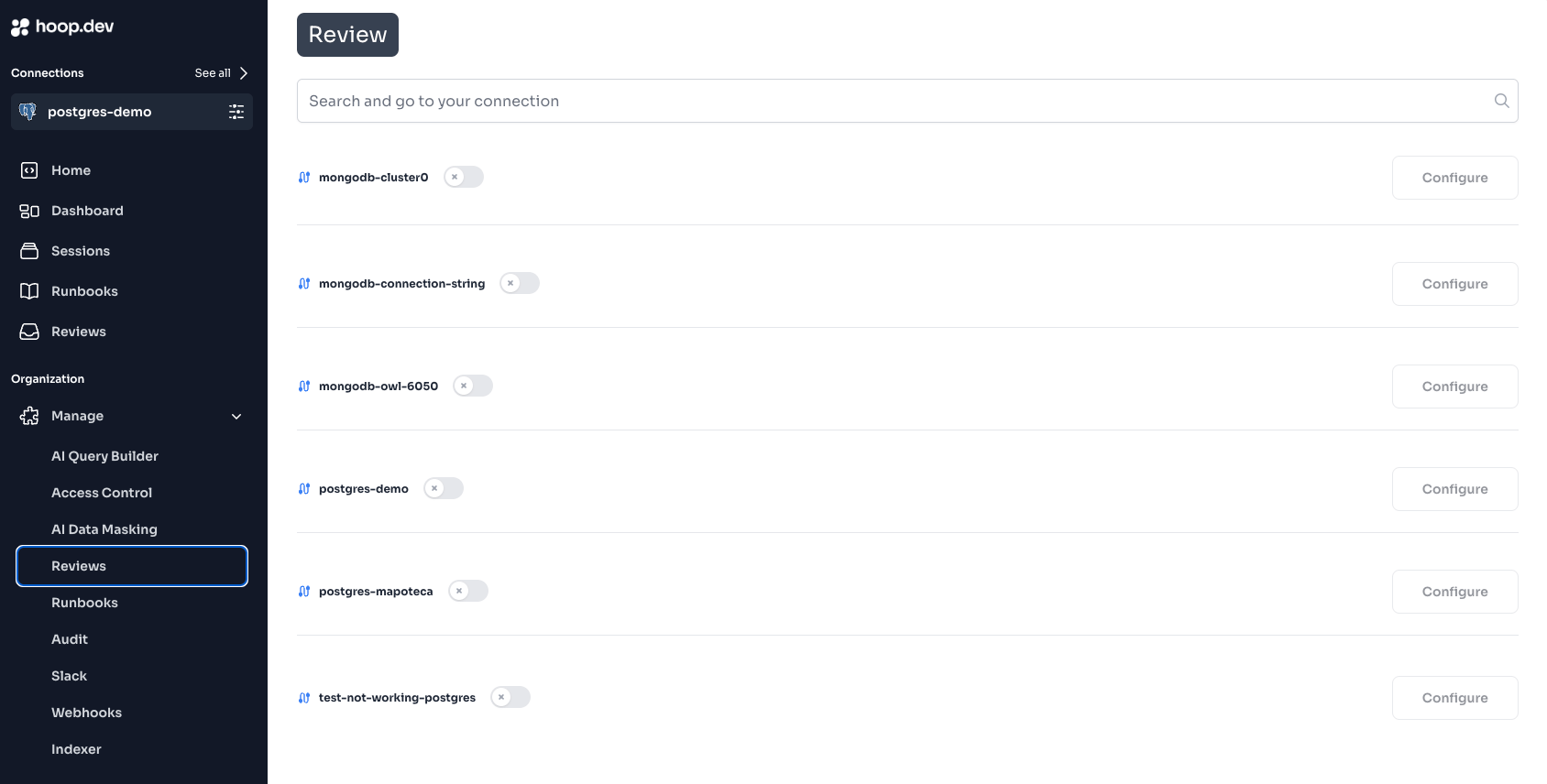
prod-postgres) and click Configure3
Configure Approval Groups
Select the groups that can approve access requests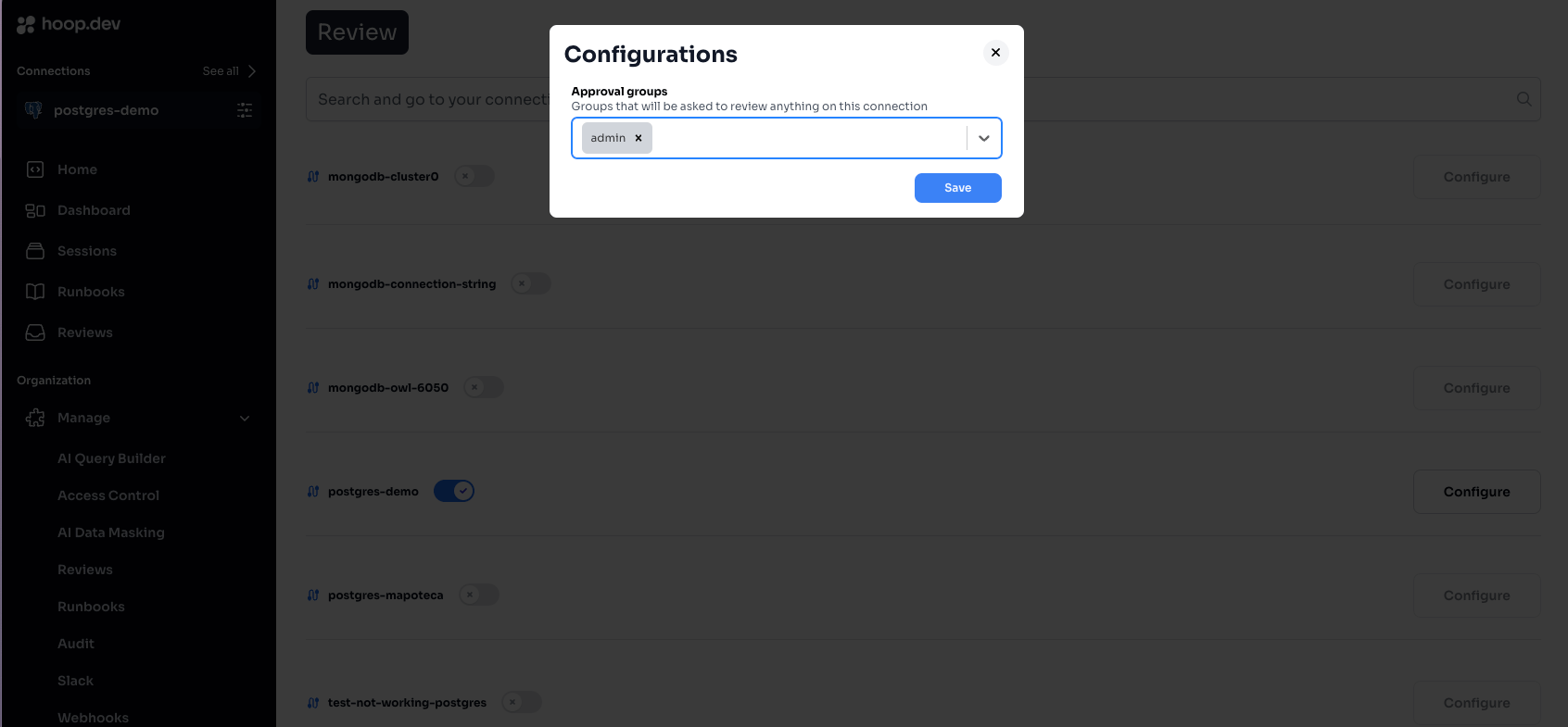
4
Save Configuration
Click Save to enable JIT access requests for this connection
Step 2: Request JIT Access (as a user)
Use the--duration flag to request time-limited access:
30m- 30 minutes2h- 2 hours8h- 8 hours (full workday)24h- 24 hours
Step 3: Approve the Request (as an approver)
Approvers receive a notification via Slack, Teams, or email (depending on your configuration): Option A: Approve via Slack Click the Approve button directly in the Slack notification. Option B: Approve via Web App- Go to Access Requests in the sidebar
- Find the pending request
- Review the details (who, what connection, how long)
- Click Approve or Reject
Step 4: Access Granted
Once approved, the user’s terminal shows:Step 5: Automatic Expiration
When the duration ends:- The session status changes to EXECUTED
- New connection attempts require a new approval
- All activity is logged in the session audit trail
Configuration Options
Access Duration Limits
Control how long users can request access for. Configure this in Manage > Connections > [connection] > Settings:Multiple Approval Groups
Require approval from multiple teams for sensitive resources:
Use case: Production database access requires both DBA approval and Security sign-off.
Approval Group Requirements
Admin users can approve their own requests. To test the full workflow, use a non-admin account.
Common Use Cases
1. Production Database Debugging
A developer needs to investigate a production issue:2. On-Call Access
On-call engineers get temporary elevated access during their shift:3. Break-Glass Emergency Access
For urgent incidents, request immediate access with documentation:emergency-approvers group with 24/7 availability.
4. Contractor Time-Limited Access
Grant temporary access for external contractors:Integrations
JIT Access Requests work with your existing communication tools:Slack
Receive access requests and approve directly in Slack
Microsoft Teams
Get notifications and manage access requests in Teams
Setting Up Slack Notifications
- Install the Slack integration
- Configure channels for access request notifications
- Users run
/hoop subscribein Slack to receive notifications
Troubleshooting
”My request is stuck in PENDING”
Possible causes:- No active approvers - Check that the approval groups have members online
- Multiple groups required - All configured groups must approve
- Slack notifications not working - Verify the Slack integration is configured
- View the request in Access Requests > find your request > check which groups have approved
”Admin users bypass the approval”
This is expected behavior. Admin users auto-approve their own requests. To test the full workflow:- Create a non-admin test user
- Add them to a group without admin privileges
- Request access as that user
”Access still works after time limit”
Possible causes:- Active session - If a session is actively in use, it may not terminate immediately
- Request not expired - Check the request status in Access Requests > click on the session
- An admin can Revoke the access from the Access Requests page
- This immediately changes the status to REVOKED and terminates access
”I can’t see the approval notification in Slack”
Check:- The Slack app is installed correctly (setup guide)
- The connection has the
slackplugin enabled - The approver has subscribed with
/hoop subscribe - The notification channel is configured in Slack plugin settings
Best Practices
Set Reasonable Durations
Match access duration to task requirements. 2 hours for debugging, 8 hours for on-call shifts.
Use Multiple Groups for Sensitive Systems
Require both technical and security approval for production databases.
Configure Slack/Teams
Real-time notifications ensure fast approval turnaround.
Audit Regularly
Review access patterns in Sessions to identify unusual activity.
Next Steps
Action Access Requests
Approve individual commands instead of time-based access
Slack Integration
Set up Slack for access request notifications
Session Recording
Audit what happened during approved sessions
Access Control
Configure who can access which connections