> ## Documentation Index
> Fetch the complete documentation index at: https://hoopdev-feat-new-runbook-parameters.mintlify.site/llms.txt
> Use this file to discover all available pages before exploring further.
# Google
## Requirements
* An [account in GCP](https://console.cloud.google.com)
* `API_URL` is the public DNS name of the hoop gateway instance
Contact the administrator of the hoop gateway instance to retrieve the `API_URL` address.
## Identity Provider Configuration
Login with your account at [https://console.cloud.google.com/apis/credentials](https://console.cloud.google.com/apis/credentials)
* Go to `Credentials` > `Create Credentials` button > `OAuth Client ID`
* In Application type, select `Web Application`
* Give it a name (i.e. “Hoop”)
* Click Authorized redirect URIs and add the URL: `{API_URL}/api/callback`
* Click Create button
* Take note on the `ClientID` and `Client Secret`
When you created the app, you got those. But they are also available in the JSON file that was downloaded by the creation time. The download is also available at:
* Credentials > OAuth 2.0 Client IDs > Actions > Download
The Issuer URI is `https://accounts.google.com`
## Configuring Groups
Groups are synchronized by performing a request to the [Cloud Identity API](https://cloud.google.com/identity/docs/reference/rest/v1/groups.memberships/searchDirectGroups) as a best effort operation.
This feature is available in version 1.35.2 and later.
Configure the gateway with the env **IDP\_CUSTOM\_SCOPES**
* `https://www.googleapis.com/auth/cloud-identity.groups.readonly`
Users will need to provide consent for the following access permissions when first logging in to enable proper group synchronization.
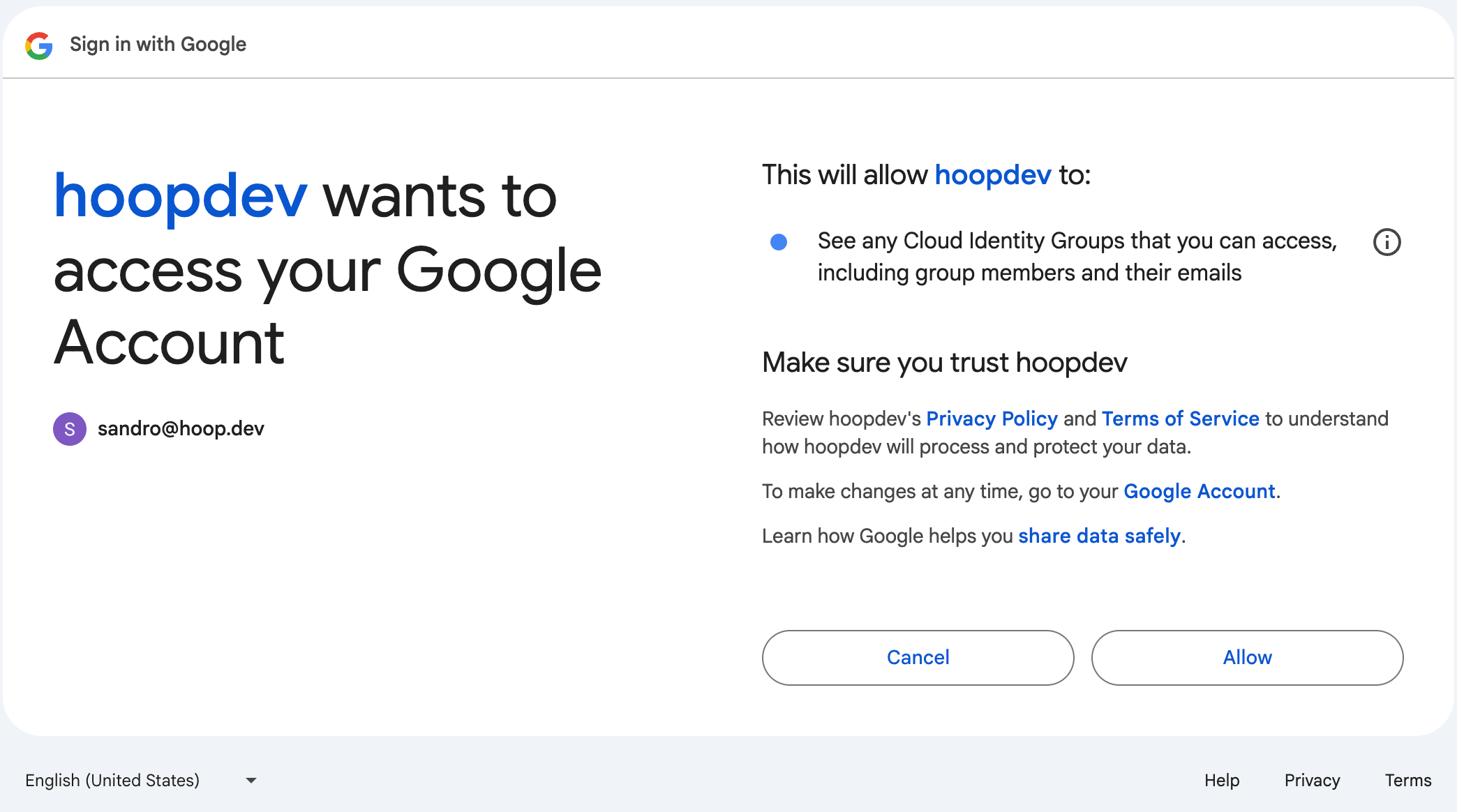 Restart the gateway after applying these changes.
* Visit the [Cloud Identity API Page](https://console.cloud.google.com/apis/api/cloudidentity.googleapis.com/overview)
* Clik in the button `ENABLE`
When configuring group synchronization, admin access may be revoked upon your next sign-in.
To maintain administrative privileges, set the `ADMIN_USERNAME` configuration parameter to a Google Workspace group that you want to map as admin on Hoop.
Restart the gateway after applying these changes.
* Visit the [Cloud Identity API Page](https://console.cloud.google.com/apis/api/cloudidentity.googleapis.com/overview)
* Clik in the button `ENABLE`
When configuring group synchronization, admin access may be revoked upon your next sign-in.
To maintain administrative privileges, set the `ADMIN_USERNAME` configuration parameter to a Google Workspace group that you want to map as admin on Hoop.