> ## Documentation Index
> Fetch the complete documentation index at: https://hoopdev-feat-new-runbook-parameters.mintlify.site/llms.txt
> Use this file to discover all available pages before exploring further.

# Managing Access

> Learn how to control and organize access to your connections through user groups and permissions

export const SessionAnimation = ({autoPlay = true, protocol = 'postgres'}) => {
  const STEP_DURATION = 2800;
  const STEPS = [{
    id: 0,
    label: 'Connection established'
  }, {
    id: 1,
    label: 'Query received'
  }, {
    id: 2,
    label: 'Response intercepted'
  }, {
    id: 3,
    label: 'Masking applied'
  }, {
    id: 4,
    label: 'Session logged'
  }];
  const MASKED_ROWS = [['1001', 'J. Smith', '***-**-6789'], ['1002', 'M. Rodriguez', '***-**-7890'], ['1003', 'A. Chen', '***-**-8901'], ['1004', 'S. Patel', '***-**-9012']];
  const [activeStep, setActiveStep] = useState(0);
  const [visible, setVisible] = useState(true);
  const [progress, setProgress] = useState(0);
  const activeStepRef = useRef(activeStep);
  activeStepRef.current = activeStep;
  function goTo(id) {
    setVisible(false);
    setTimeout(() => {
      setActiveStep(id);
      setVisible(true);
    }, 175);
  }
  useEffect(() => {
    if (!autoPlay) return;
    const id = setInterval(() => {
      goTo((activeStepRef.current + 1) % STEPS.length);
    }, STEP_DURATION);
    return () => clearInterval(id);
  }, [autoPlay]);
  useEffect(() => {
    setProgress(0);
    const start = performance.now();
    let frameId;
    function tick(now) {
      const elapsed = now - start;
      const pct = Math.min(elapsed / STEP_DURATION * 100, 100);
      setProgress(pct);
      if (pct < 100) {
        frameId = requestAnimationFrame(tick);
      }
    }
    frameId = requestAnimationFrame(tick);
    return () => cancelAnimationFrame(frameId);
  }, [activeStep]);
  function renderPanel() {
    switch (activeStep) {
      case 0:
        return <div className="sa-code">
            <div>
              <span className="sa-prompt">$ </span>
              <span className="sa-cmd">hoop connect {protocol}:prod</span>
            </div>
            <div className="sa-gap" />
            <div>
              <span className="sa-gold">✓ </span>
              <span className="sa-out">Connected to {protocol}:prod</span>
            </div>
            <div>
              <span className="sa-muted">  Session   </span>
              <span className="sa-val">sess_01jkx7r2nb4f</span>
            </div>
            <div>
              <span className="sa-muted">  Identity  </span>
              <span className="sa-val">alice@corp.com</span>
            </div>
            <div>
              <span className="sa-muted">  Auth      </span>
              <span className="sa-val">OIDC · token expires in 8h</span>
            </div>
          </div>;
      case 1:
        return <div className="sa-code">
            <div>
              <span className="sa-muted">psql&gt; </span>
              <span className="sa-cmd">SELECT id, name, ssn, email FROM customers LIMIT 4;</span>
            </div>
            <div className="sa-gap" />
            <div className="sa-dim">Forwarding to {protocol}:prod...</div>
            <div className="sa-dim">Response received · 4 rows · 3.2 KB</div>
            <div className="sa-gap" />
            <div className="sa-dim sa-small">Hoop inspecting response payload...</div>
          </div>;
      case 2:
        return <div className="sa-code">
            {[['123-45-6789', 'row 1'], ['234-56-7890', 'row 2'], ['345-67-8901', 'row 3'], ['456-78-9012', 'row 4']].map(([val, label]) => <div className="sa-detect-row" key={label}>
                <span className="sa-badge">SSN detected</span>
                <span className="sa-val">{val}</span>
                <span className="sa-muted sa-small">{label}</span>
              </div>)}
            <div className="sa-gap" />
            <div className="sa-dim sa-small">
              Pattern: \d{'{3}'}-\d{'{2}'}-\d{'{4}'} · column: ssn · 4 matches
            </div>
          </div>;
      case 3:
        return <div className="sa-code">
            <div className="sa-trow sa-thead">
              <span>id</span>
              <span>name</span>
              <span>ssn</span>
            </div>
            <div className="sa-divider" />
            {MASKED_ROWS.map(([id, name, ssn]) => <div className="sa-trow" key={id}>
                <span className="sa-dim">{id}</span>
                <span className="sa-out">{name}</span>
                <span className="sa-gold sa-bold">{ssn}</span>
              </div>)}
          </div>;
      case 4:
        return <div className="sa-code">
            <div><span className="sa-muted">session  </span><span className="sa-val">sess_01jkx7r2nb4f</span></div>
            <div><span className="sa-muted">identity </span><span className="sa-val">alice@corp.com</span></div>
            <div><span className="sa-muted">resource </span><span className="sa-val">{protocol}:prod</span></div>
            <div><span className="sa-muted">duration </span><span className="sa-val">1m 24s</span></div>
            <div><span className="sa-muted">masked   </span><span className="sa-val">4 SSN values</span></div>
            <div><span className="sa-muted">blocked  </span><span className="sa-val">0 operations</span></div>
            <div><span className="sa-muted">risk     </span><span className="sa-gold sa-bold"> low</span></div>
          </div>;
      default:
        return null;
    }
  }
  return <div className="sa-root" aria-label="Session walkthrough">

      {}
      <div className="sa-steps">
        {STEPS.map(step => <button key={step.id} className={`sa-step${activeStep === step.id ? ' sa-active' : ''}`} onClick={() => goTo(step.id)}>
            <span className="sa-num">{String(step.id + 1).padStart(2, '0')}</span>
            <span className="sa-label">{step.label}</span>
          </button>)}
      </div>

      {}
      <div className="sa-progress-track">
        <div className="sa-progress-fill" style={{
    width: `${progress}%`
  }} />
      </div>

      {}
      <div className="mock-container sa-panel">
        <div className="mock-toolbar" style={{
    justifyContent: 'space-between'
  }}>
          <div style={{
    display: 'flex',
    gap: 6
  }}>
            <div className="mock-dot" />
            <div className="mock-dot" />
            <div className="mock-dot" />
          </div>
          <span className="sa-protocol">{protocol}</span>
          <span style={{
    width: 48
  }} />
        </div>
        <div className={`sa-body${visible ? ' sa-visible' : ' sa-hidden'}`}>
          {renderPanel()}
        </div>
      </div>

      <style>{`
        .sa-root {
          display: flex;
          gap: 24px;
          width: 100%;
        }

        /* ── Step list ── */
        .sa-steps {
          display: flex;
          flex-direction: column;
          gap: 2px;
          min-width: 188px;
        }

        .sa-step {
          display: flex;
          align-items: flex-start;
          gap: 10px;
          background: none;
          border: none;
          cursor: pointer;
          padding: 9px 12px;
          border-radius: 6px;
          text-align: left;
          transition: background 0.15s;
        }

        .sa-step:hover       { background: rgba(var(--sand-100-rgb), 0.04); }
        .sa-step.sa-active   { background: rgba(var(--sand-100-rgb), 0.06); }

        .sa-num {
          font-family: var(--mono);
          font-size: 11px;
          color: rgba(var(--sand-100-rgb), 0.25);
          flex-shrink: 0;
          padding-top: 1px;
        }

        .sa-step.sa-active .sa-num { color: var(--warm-gold); }

        .sa-label {
          font-family: var(--sans);
          font-size: 12px;
          color: rgba(var(--sand-100-rgb), 0.35);
          line-height: 1.45;
        }

        .sa-step.sa-active .sa-label { color: rgba(var(--sand-100-rgb), 0.8); }

        /* ── Progress bar ── */
        .sa-progress-track {
          height: 2px;
          background: rgba(var(--sand-100-rgb), 0.06);
          border-radius: 1px;
          overflow: hidden;
          margin-top: 8px;
        }

        .sa-progress-fill {
          height: 100%;
          background: var(--warm-gold);
          border-radius: 1px;
          transition: width 0.1s linear;
          opacity: 0.6;
        }

        /* ── Panel ── */
        .sa-panel {
          flex: 1;
          border-radius: 10px;
          overflow: hidden;
          height: 260px;
          overflow: hidden;
        }

        .sa-protocol {
          font-family: var(--mono);
          font-size: 11px;
          color: rgba(var(--sand-100-rgb), 0.2);
        }

        .sa-body {
          padding: 20px;
          height: 200px;
          transition: opacity 0.175s ease;
        }

        .sa-visible { opacity: 1; }
        .sa-hidden  { opacity: 0; }

        /* ── Code content (colors in globals.css) ── */
        .sa-code {
          font-family: var(--mono);
          font-size: 12px;
          line-height: 1.9;
          display: flex;
          flex-direction: column;
        }

        .sa-detect-row {
          display: flex;
          align-items: center;
          gap: 10px;
          padding: 2px 0;
        }

        .sa-trow {
          display: grid;
          grid-template-columns: 52px 136px 1fr;
          gap: 8px;
          font-size: 12px;
          line-height: 1.9;
        }
      `}</style>
    </div>;
};

<div style={{height: 350, overflow: 'hidden', borderRadius: 14}}>
  <SessionAnimation />
</div>

Hoop.dev provides a comprehensive access management system that allows administrators to control who can access specific connections. This is primarily managed through user groups and connection-specific configurations.

## Managing Users and Groups

### User Management

From the sidebar, administrators can access the [Users](https://use.hoop.dev/organization/users) section to:

* View all members in the organization
* Create new users
* Manage user statuses
* Edit user details and group assignments

### Group Management

Groups are the primary way to organize users and control access:

<Steps>
  <Step title="Create Groups">
    Administrators can create groups that represent teams, roles, or access levels (e.g., engineering, sales, admin)
  </Step>

  <Step title="Assign Users">
    Users can be assigned to one or multiple groups:

    * Click the **Edit** button next to a user
    * Add or remove groups from the user's profile
    * Save the changes
  </Step>
</Steps>

## Configuring Connection Access

<Frame>
  <img src="https://mintcdn.com/hoopdev-feat-new-runbook-parameters/jEgq0bFD0hXYK9XM/images/clients/webapp/managing-access-connection.png?fit=max&auto=format&n=jEgq0bFD0hXYK9XM&q=85&s=9950b5148841fdcd7b49b255f0e26b16" alt="Connection Access Configuration" width="1683" height="937" data-path="images/clients/webapp/managing-access-connection.png" />
</Frame>

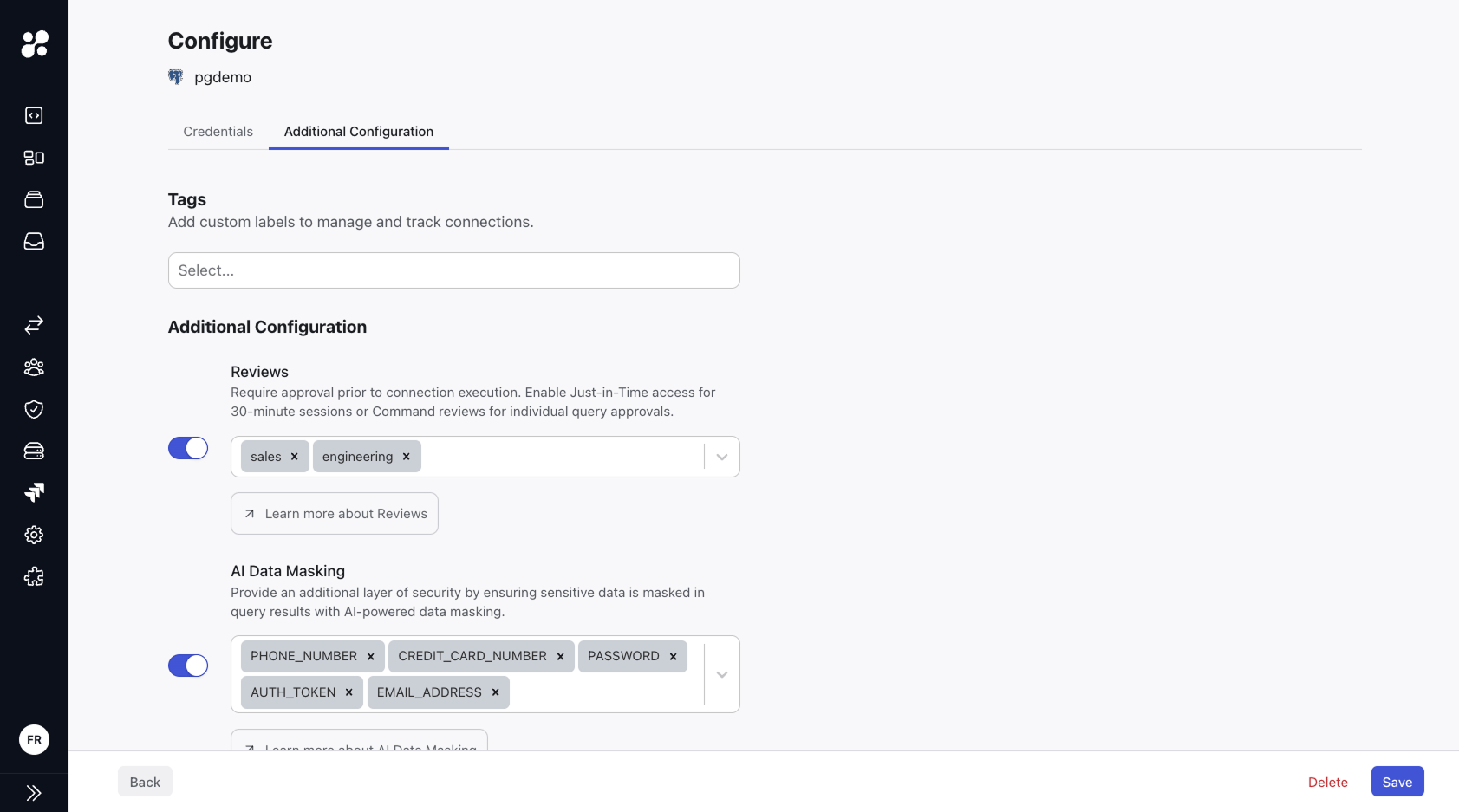
Administrators can set up access controls in the Configuration options of a connection:

### Access Requests Configuration

<Steps>
  <Step title="Enable Access Requests">
    Enable the Access Requests toggle to require approval for connection access.
  </Step>

  <Step title="Select Groups">
    Select which groups:

    * Can access the connection
    * Need approval before accessing
    * Can approve access requests
  </Step>
</Steps>

### Access Modes

Configure how users interact with the connection:

<CardGroup cols={2}>
  <Card title="Runbooks" icon="book">
    Create templates to automate tasks in your organization
  </Card>

  <Card title="Native Access" icon="terminal">
    Allow access through Command Line Interface
  </Card>

  <Card title="Web and One-offs" icon="globe">
    Enable access through the developer portal and CLI commands
  </Card>
</CardGroup>

## Best Practices

<CardGroup cols={2}>
  <Card title="Principle of Least Privilege" icon="lock">
    Grant users only the access they need for their role
  </Card>

  <Card title="Group Organization" icon="folder-tree">
    Create groups based on teams and responsibilities
  </Card>

  <Card title="Regular Audits" icon="clipboard-check">
    Periodically review group memberships and access permissions
  </Card>

  <Card title="Access Monitoring" icon="eye">
    Use session monitoring to track and audit connection usage
  </Card>
</CardGroup>

## Next Steps

<CardGroup cols={2}>
  <Card title="Monitoring Sessions" icon="video" href="/clients/webapp/monitoring-sessions">
    Learn how to track and audit connection usage
  </Card>

  <Card title="Access Requests" icon="shield-check" href="/learn/features/access-requests/jit">
    Configure approval workflows for secure access
  </Card>
</CardGroup>
